Verification guide
Google Business Profile verification,done right the first time
Which method Google offers you, how to record a video that passes, how long it takes, and what to do when it stalls. Checked against Google’s help pages.
Updated October 2026. Written by the Rank On Maps AI team, from Google’s verification help.
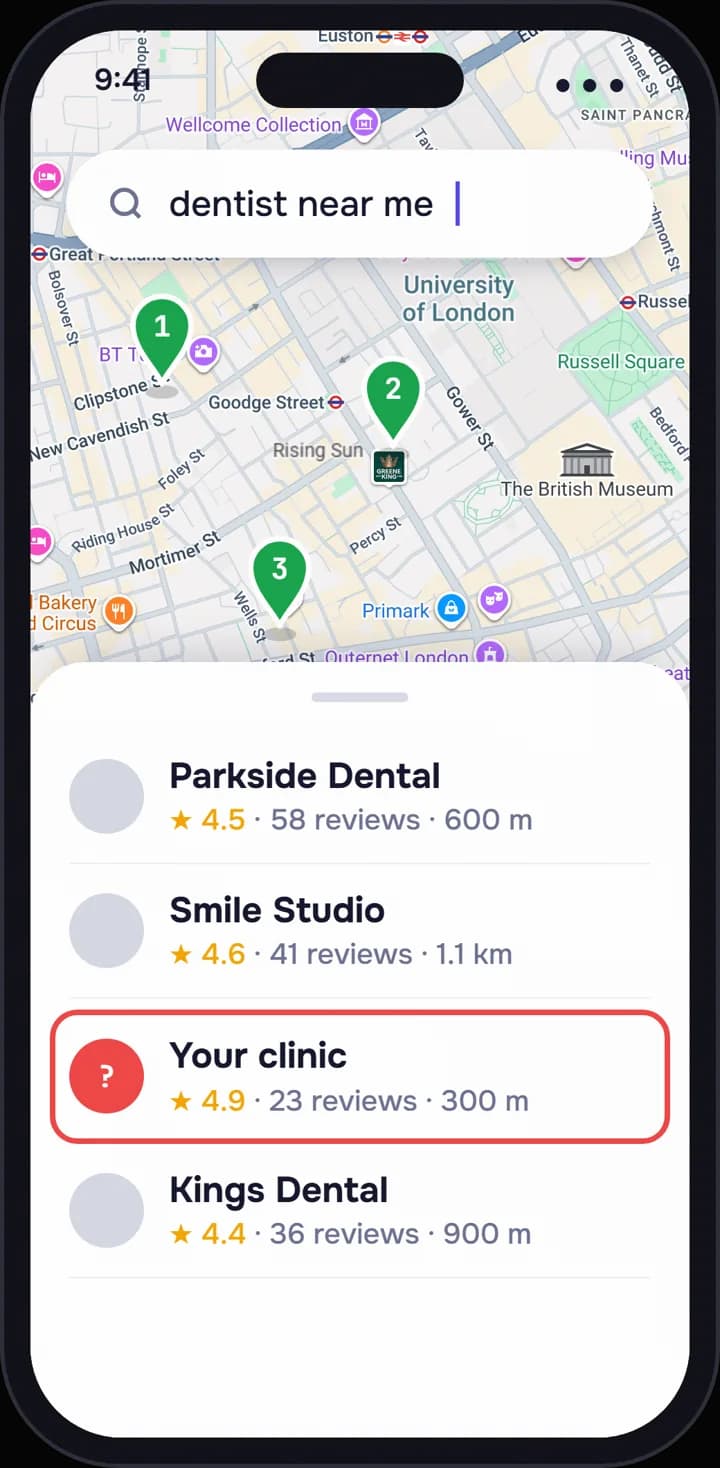
- Name matches the sign outsideChecked
- Suite number on address line 2Checked
- Video route: street, sign, keysPlanned
- City name added to the business nameFound
- Service area within two hours’ driveChecked
Map © Google
Start here
Why verification comes first.Until it is done, the profile is not really yours.
Verification is how Google confirms that a real business exists where you say it does, and that you run it. Google’s help page is plain about the stakes: you need to verify to edit your information and to interact with customers, and verifying is what gives you ownership of the profile.
Before that you can change a few basic fields, such as name, hours and phone, but you cannot run the profile. Review replies, managers and every improvement wait on this step.
If you came here because your business is missing from the map, verification is a common cause but not the only one. Our checklist for when your business is not showing on Google Maps covers the rest; this guide goes deeper on verification itself.
The routes Google offers.You do not get to pick.
Google’s help page says verification methods are determined automatically by Google and cannot be changed. You may see one route or several, and you may need more than one.
Video recording
You film the business live on your phone, inside the Business Profile, and upload it for review. Google recommends this route when you are eligible. Steps below.
Phone call or text
A code goes to the business number by call or SMS. You must answer that phone yourself: Google notes that automated phone menus will not receive the code.
Email
A message goes to the address shown on the verification screen. It only works if you can open that inbox.
Postcard by mail
A postcard with a 5-digit code goes to your address. Google says most arrive within 14 days and codes expire after 30. Not every business is offered it.
Live video call
A Google representative joins a video call and you show the business on camera. Calls run only during your business hours, and not every business gets this option.
Instant verification
In some cases Google verifies at once, for example when your website is already verified in Google Search Console, or when you use bulk verification.
Worth knowing
If several options appear, try another when the first fails. Google suggests that before contacting support.
Before you press “Get verified”.Fix these first.
- The name is your real one, as on your sign, website and stationery. Google’s guidelines do not permit extra information in it.
- The address is where you actually work. Google rejects PO boxes, remote mailboxes and virtual offices; a co-working desk counts only with signage, staff and customers received during opening hours.
- If customers do not come to you, hide the address and set a service area instead, as Google’s guidelines say.
- Name, category and address are final. Edit them after requesting a postcard and the code will not work.
- You can reach what Google will use: the business phone, the inbox on screen, or the premises with your phone in hand.
The video, step by step.One continuous take.
Google’s video page asks the recording to prove three things: where the business is, that it exists, and that you manage it. Plan the route first, because you cannot pause.
- 1
Open the profile on your phone and choose Business video
Open your Business Profile on your phone and tap Get verified; you may be asked for a phone number. Choose Business video, tap Next, read the requirements and allow location, camera and microphone. It must be recorded and uploaded from a mobile device.
- 2
Walk the route once without recording
Decide the order: street, sign, door, then something only staff can reach. Keys in your pocket, lights on. A rehearsal can save days of waiting on a rejection.
- 3
Start outside, where anyone could find you
Show the location: a street sign, the building number, the business next door or a nearby landmark. Pan slowly enough for each sign to be readable.
- 4
Show the business, with its name
Film the storefront or signage with your name on a permanent fixture that matches the profile. A paper sign in the window is not permanent; with no fixed signage, Google says to list as a service-area business.
- 5
Prove you run it
Unlock the door, then show what only staff can reach: the till, the stockroom, the kitchen. For a dental practice, the sterilisation room.
- 6
Keep it continuous, and keep others out of it
The recording must be live, unedited, without breaks and at least half a minute long; you cannot film earlier and upload later. Avoid other people’s faces, and never show bank details, tax numbers or ID documents.
- 7
Review it, then upload
Stop, watch it back, and tap Try again if a sign was unreadable. Then tap Upload video. Google says review can take up to 5 business days.
Rank Pilot: it cannot verify the profile for you, and nobody else should hold your code. Once you are verified, it can start work.
If the video is rejected
Tap Review issues on the profile. Google lists what was missing, such as a business name not visible or no nearby area shown. Record a new video with everything from the first plus the missing part, and upload it.
No storefront?Verification still works.
Plumbers, cleaners and home-based businesses verify too. Only what you film changes.
Google’s video page has a separate list for service-area businesses. For location, film street signs or landmarks at your base, not empty land. Working from home? Film the signs and landmarks of your street.
For existence, show your tools, equipment, workspace, business cards or branded clothing. For management, perform part of a service or unlock a van with your branding. A permit, invoice or utility bill in the profile’s name also counts.
Keep the address hidden and list only the areas you cover. Google’s guidelines say a service area should generally stay within about two hours’ drive of your base.
How long it takes.Google’s own numbers.
These are the times Google publishes. Rarely, it says, a review takes longer.
- Video and other reviewed methods: up to 5 business days after you finish
- Postcard: most arrive within 14 days; the code expires after 30 days
- Live video call: only during your listed business hours
- Search Console or bulk verification: can be instant
- Edits to a verified profile: usually up to 10 minutes, sometimes up to 30 days
Waiting on a postcard? Do not order another. Google says a new request cancels the code already in the mail.
Why verification fails.Seven causes and their fixes.
- 1
The address does not match
What you film, or where the postcard goes, must agree with the profile. Fix the address first; a suite or unit number goes on line 2.
- 2
No permanent sign
Google looks for your name on a fixed sign matching the profile. Install one, or list as a service-area business if customers never visit.
- 3
A service-area business showing its address
If you go to customers, hide the address and set a service area before trying again.
- 4
Keywords in the business name
“Smile Dental Emergency Dentist London” is not what the sign says. Restore the real name first, or the name is what gets rejected.
- 5
A PO box or a virtual office
Google’s guidelines say a rented mailing address where you do not operate is not eligible for a profile at all. No method gets it through.
- 6
Cuts in the video, or no proof of management
An edited, paused or pre-recorded video fails. So does one showing the street and sign but never the inside. One take, all three proofs.
- 7
Too many requests and edits
A new postcard cancels the old code, and editing name, address or category after requesting breaks it. Request once, change nothing, wait.
Stuck, rejected or asked to verify again.
What Google says each case means.
“Get verified” is back on your profile. Google says this means it could not fully verify the business. Try again, or switch method if more than one is offered.
Google asks for more information. Google says this usually follows recent changes to your business details. Select Get verified and repeat the steps; it is normal, not a penalty.
Nothing after 5 business days. Google says reviews rarely take longer, so allow a little more time, then try another offered method. Still stuck? Contact support through Google’s Business Profile help pages and list what you tried.
If the profile was suspended rather than left unverified, that is a separate process with its own appeal: what to do when a Google Business Profile is suspended.
Once you are verified.What comes next.
Google sends a confirmation email. From then on the profile is yours to run.
Add managers rather than sharing your login. Google says it will never ask for your verification code, and not to share it, even with your profile’s managers.
Rank Pilot starts here, not before; verifying needs you. Once you are verified, it rebuilds the profile and keeps it current, drafts a reply to every review that you save (with Autopilot on, it goes out two hours later), and checks your rank weekly from 25 points across your city. To do the field work yourself, follow our Google Business Profile optimization guide.
Then see what the verified profile is worth on the map: see where you rank across your city in about a minute.
Straight answers
Verification, answered.The questions owners ask most.
How long does Google Business Profile verification take?
Google says review takes up to 5 business days after you complete the steps, rarely longer. A postcard usually arrives within 14 days. It can be instant if your website is verified in Search Console or you use bulk verification.
Why can’t I choose postcard verification?
Because Google chooses. Its help page says methods are determined automatically and cannot be changed, and the postcard is not offered to every business. Use what you are shown; if several appear, you can switch.
Can I verify without a storefront?
Yes. Hide the address, set the areas you cover, and in the video show your base’s neighbourhood, your tools or branded van, and proof you run the business, such as an invoice in its name.
Why did Google ask me to verify again?
Usually because you changed business details such as name, address or category. Select Get verified and repeat the steps with the method offered.
Can someone else verify the profile for me?
Verifying needs whoever can answer the business phone, open its inbox or film at the premises, normally you or your staff. Google says never to share the code, even with managers. Add an agency as a manager once you are verified.
What if verification keeps failing?
Read the reasons under Review issues, fix them, and record a new video with everything plus what was missing. Check name, address and signage, try another offered method, then contact support.
Verified?Now see where you actually show. It takes about a minute.
Type your business name. See your rank across your city and which competitors sit above you.
- About a minute
- No sign-up
- Your real competitors